
Use your iPhone or iPad as a Mac game controller
Play Mac games with TouchNow’s on-screen buttons and sticks. Connect your iPhone or iPad to your Mac on the same Wi-Fi for free, then choose the controller icon to open Game mode. Map the controls to the keys your game uses.

Get started in Game mode
Connect first
Install TouchNow on your iPhone or iPad and the free TouchNow Host on your Mac. Put both devices on the same Wi-Fi, then follow the setup guide to pair and connect.
Switch to Game mode
Pick the controller icon in the mode switcher. The screen turns landscape and the default pad appears.
A stick and four buttons
That default is a starting point, not a limit. Anything on it can be moved, resized, rebound or deleted.
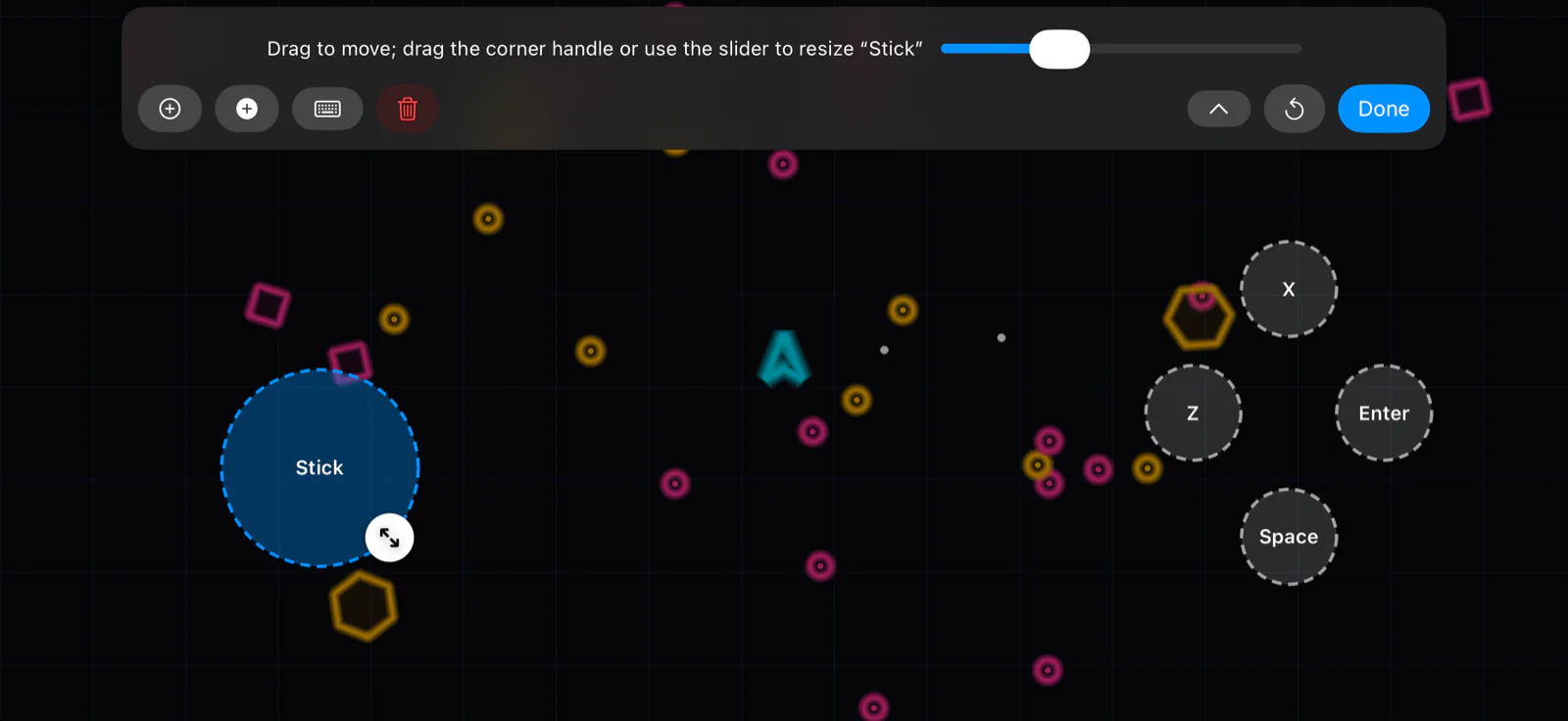 Drag to resize
Tap “⋯” → “Edit Button Layout”
That menu item only exists while you are in Game mode. Everything turns into a dashed outline, and the one you tapped last is highlighted — that is the one the panel is acting on.
Drag any button or stick to move it. Drag the round handle at its lower right, or use the slider in the panel, to resize it anywhere from half size to a little over double.
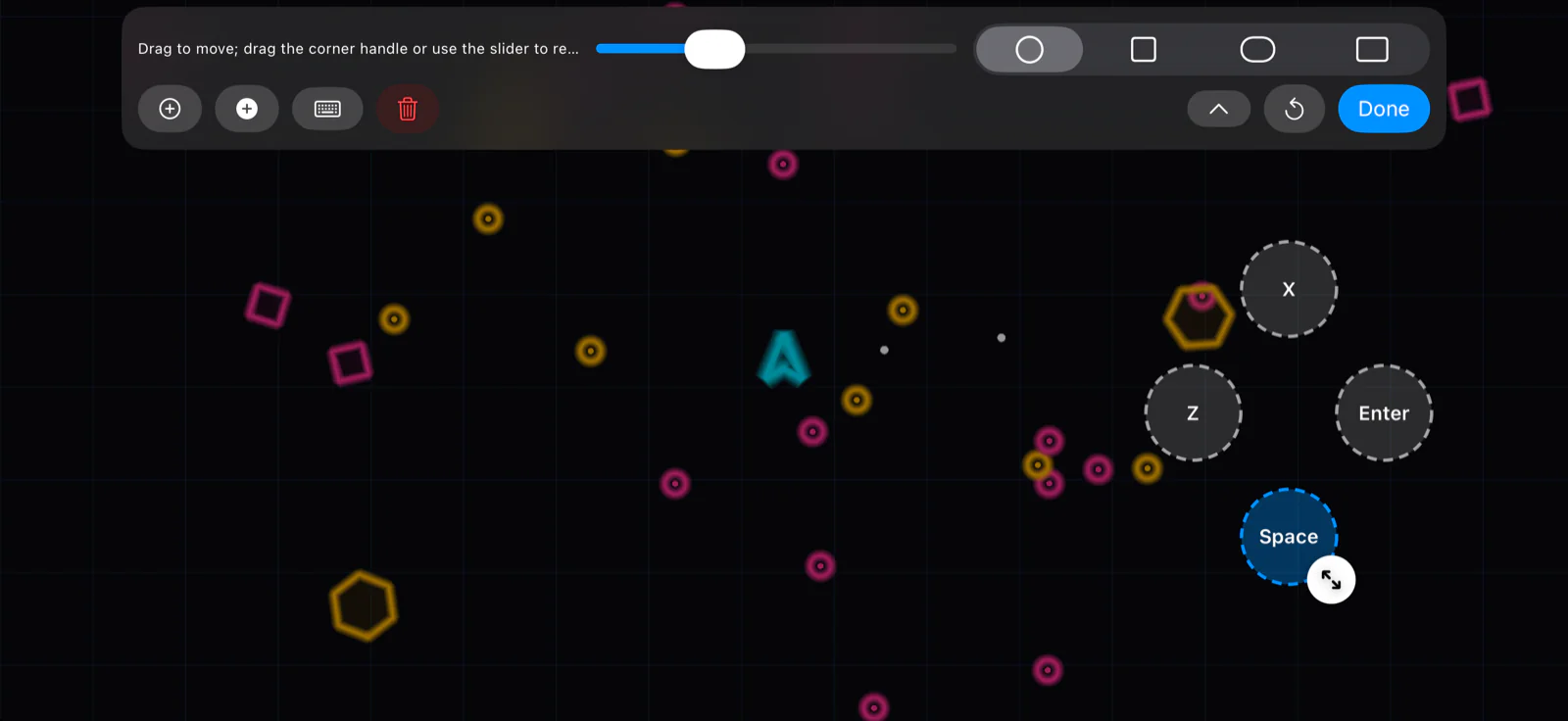 Four shapes
Circle, square, capsule or bar
Select a button and a shape picker appears in the panel. A shape is not decoration — it is how big a target your thumb gets. A wide bar is hard to miss for something you hit constantly, like jump; a small circle keeps a rarely-used key from swallowing the screen.
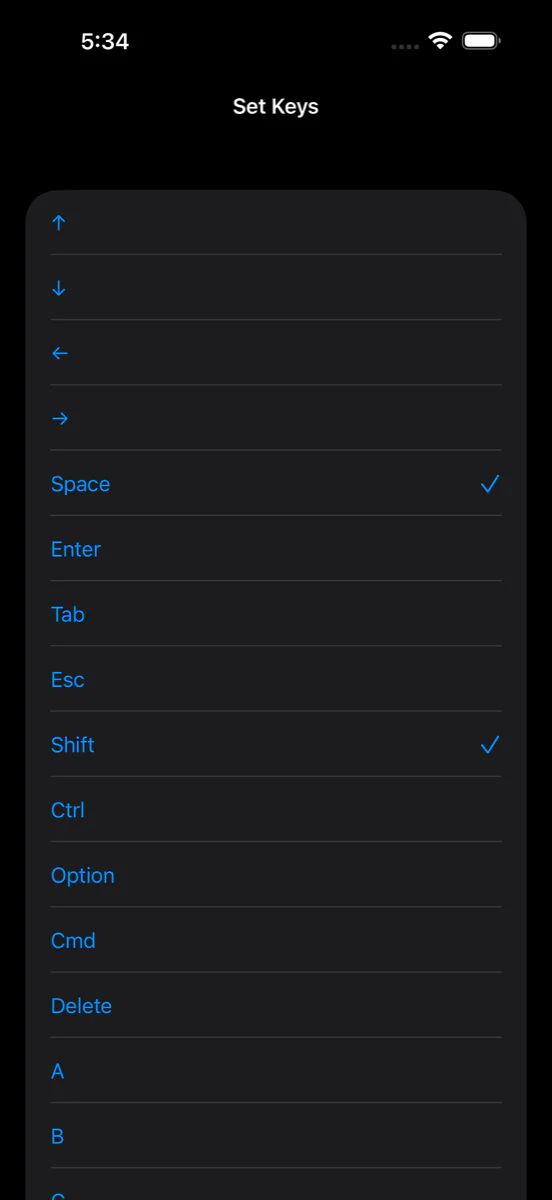 Tick more than one
One key, or several at once
Tap the keyboard button in the panel and pick what this button should press. Tick more than one and they are all held together — Shift + Space becomes a single sprint-jump you can hit with one thumb.
The full list is there: A–Z, 0–9, arrows, Space, Enter, Tab, Esc, Delete, ⌘ ⌥ ⌃ ⇧, and F1–F12.
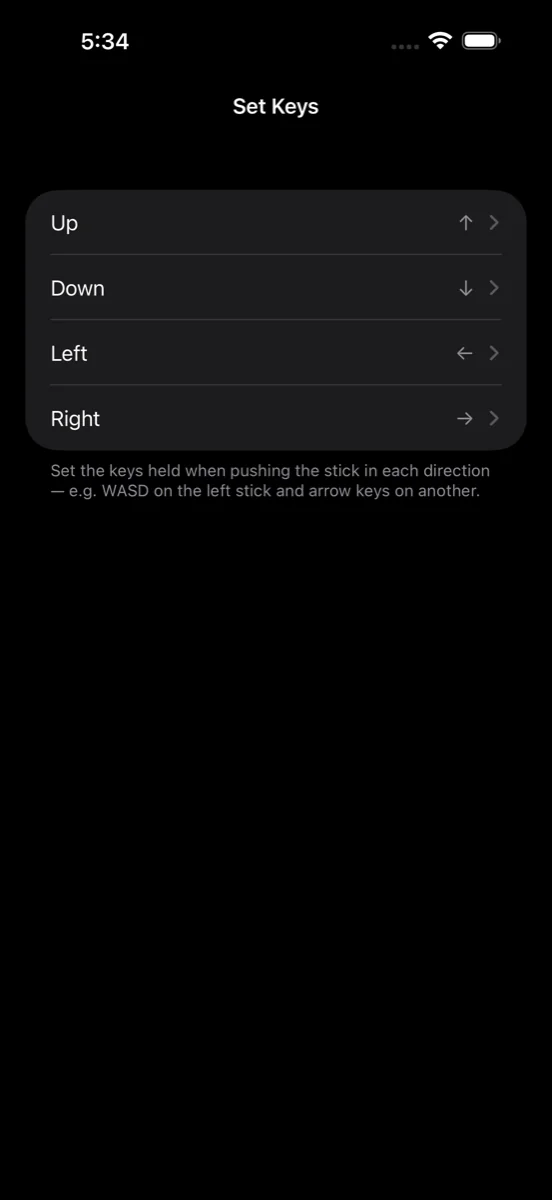 Four separate keys
The stick’s four directions are four separate bindings
Up, Down, Left and Right are set one at a time, so a stick is really just four keys arranged in a circle. A new stick starts on the arrow keys; add a second one and it starts on WASD. Both are yours to change.
A few more things worth knowing
It saves itself
The layout is written to your device the moment you change it, and it is there the next time you connect. There is nothing to name or export.
Try TouchNow
Install TouchNow on your iPhone or iPad and the free TouchNow Host on the Mac you want to control.
Download TouchNow for iPhone, iPad and Mac
Using another Mac? Install TouchNow Host on both Macs. Use “Control Other Macs” on the Mac you are controlling from. Same-Wi-Fi control is free. For access across networks, subscribe to Remote Access on your iPhone or iPad and connect it to the controlling Mac once to share the subscription.