
Use your iPhone as a trackpad for your Mac
Turn your iPhone into a trackpad or mouse for your Mac, with the Mac’s screen in view on your phone. Move the cursor, click, scroll and drag from the sofa or another room. Free on the same Wi-Fi, with no account.
Start using your iPhone as a Mac trackpad
You need TouchNow on your iPhone and the free TouchNow Host on the Mac you want to control.
- Install both apps. Get TouchNow for iPhone or iPad from the App Store and install TouchNow Host on your Mac.
- Pair on the same Wi-Fi. Open TouchNow Host and allow Screen Recording and Accessibility when prompted. Follow the QR pairing guide to connect your iPhone to your Mac.
- Choose Trackpad. Once connected, use the mode button at the top right, then use the controls and gestures below.
Free on the same Wi-Fi. Connecting across different networks requires Remote Access; see pricing.
Switch to Trackpad mode
Once connected, the first button at the top right picks the mode; choose “Trackpad”. If the buttons are missing, the arrow at the far right has collapsed the row, so tap it to bring them back.
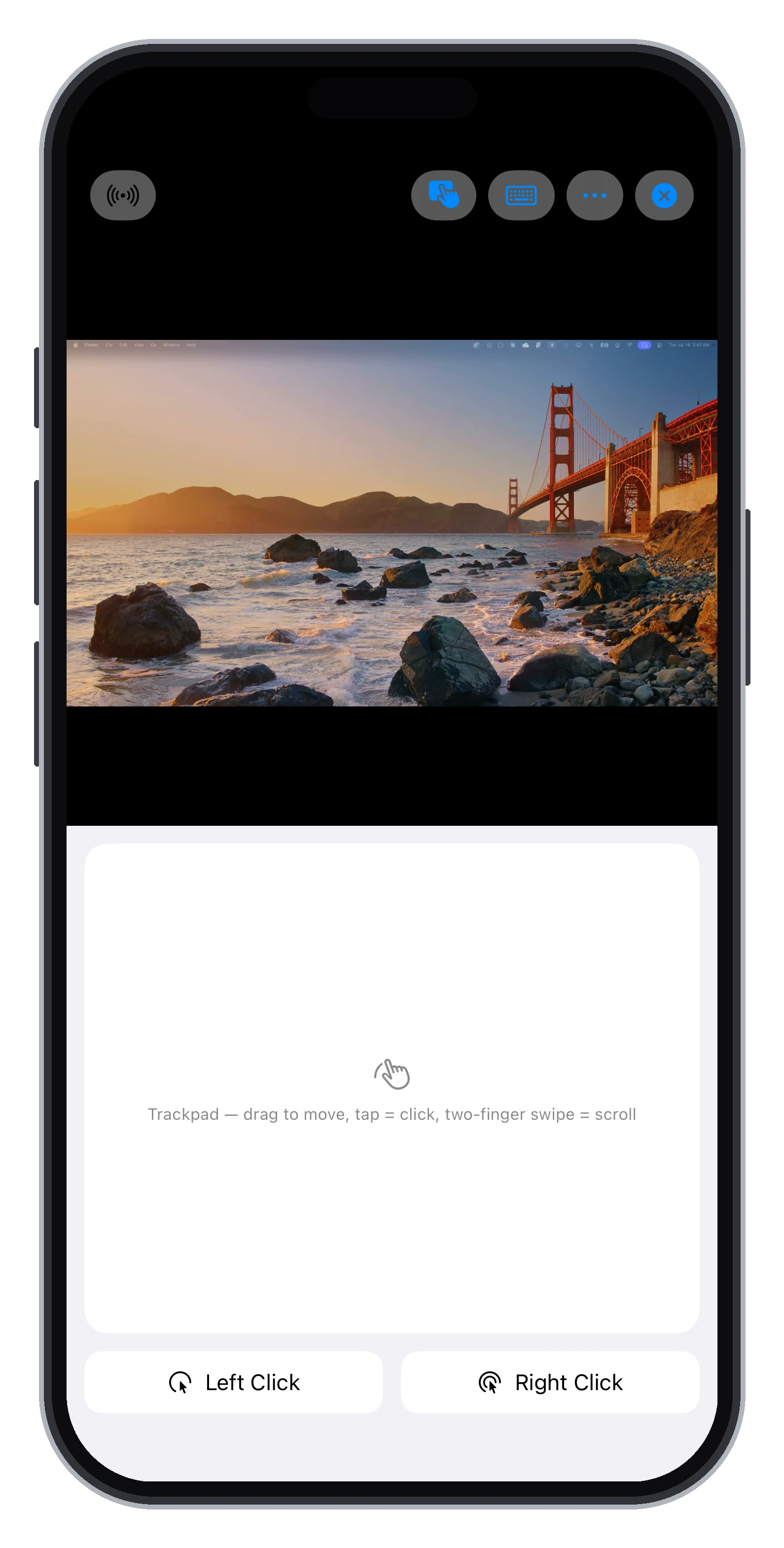
Your Mac screen and trackpad, together on your iPhone.
- 1Mode button: open this menu and choose Trackpad.
- 2Trackpad area: drag one finger to move; tap to click; use two fingers to scroll or tap for a right click.
- 3Left Click: hold this button while dragging with another finger to move a window or select text.
- 4Right Click: open the context menu at the cursor’s current position.
Actual TouchNow screenshot with the controls marked above.
The basic gestures
Drag one finger to move the cursor; where you touch doesn’t matter. A single tap is a left click. A two-finger tap is a right click, at wherever the cursor is now. Slide two fingers to scroll.
Dragging windows and selecting text
Hold the on-screen “Left Click” button with one finger and drag with another. That’s how you move windows, select text and move files.
Speed and the loupe
Adjust “Pointer Speed” in “Settings” → “Pointer”. While you drag, a loupe magnifies the area around the cursor so small buttons and text edges are easy to hit; the same page sets its size, or you can turn off “Show Loupe”.
More than a remote mouse app
Typical phone-as-mouse apps only send cursor movement, so you have to be looking at the Mac. TouchNow streams the Mac’s screen to your iPhone, so you can work from the sofa or another room just by looking at your phone. When you need a precise click, switch to direct touch and tap exactly where you mean.
A real mouse works too
Connect a Bluetooth mouse to your iPhone or iPad and it drives the Mac cursor directly.
Does it cost anything?
No. On the same Wi-Fi it is free, like every other feature.
Ready to try it? Get both apps, then follow the setup guide. Your first connection and every feature are free on the same Wi-Fi.