
A full MacBook keyboard
Esc, F1–F12, arrow keys and ⌘⌥⌃⇧ — none of which the iOS system keyboard can send.
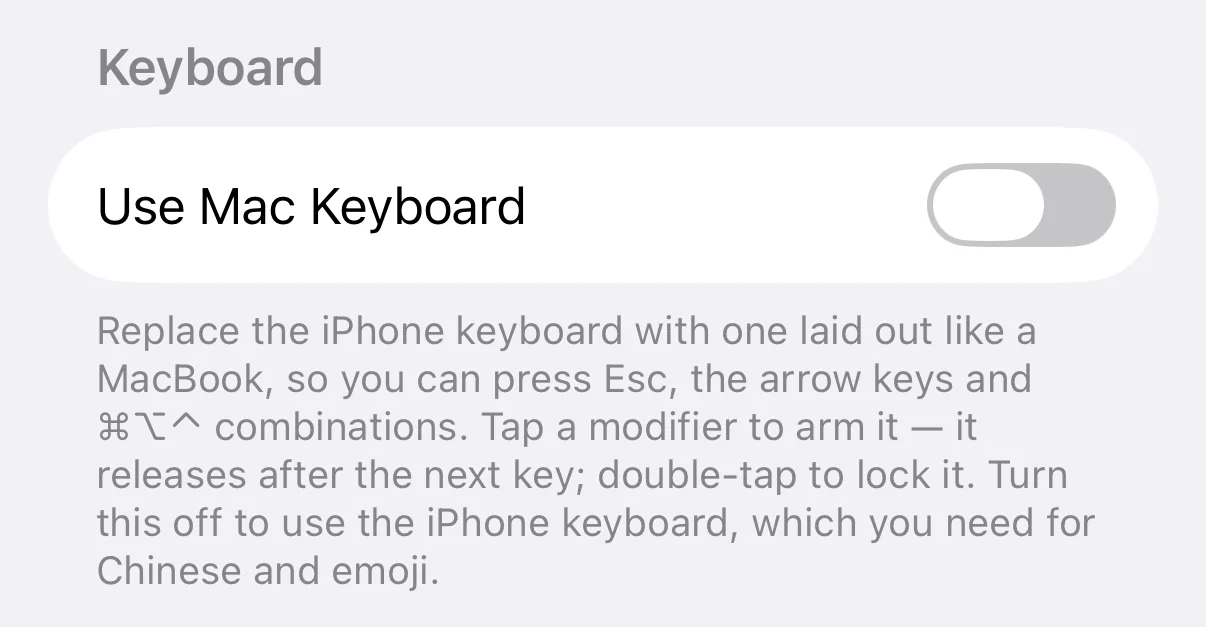 Turn this on
Turning it on in Settings
Replace the iPhone keyboard with one laid out like a MacBook, so you can press Esc, the arrow keys and ⌘⌥⌃ combinations. Tap a modifier to arm it — it releases after the next key; double-tap to lock it. Turn this off to use the iPhone keyboard, which you need for Chinese and emoji.
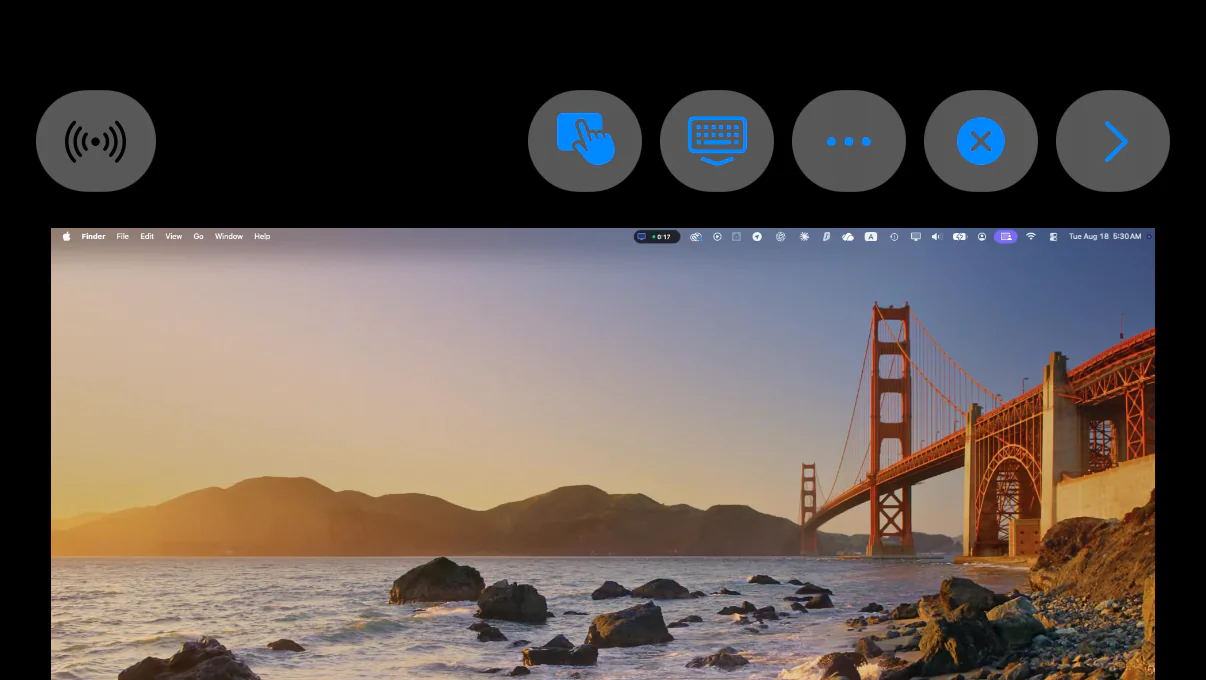 Tap this keyboard icon
Once connected, tap the keyboard icon in the toolbar
The keyboard rises from the bottom of the screen. With Use Mac Keyboard on, what comes up is the MacBook one, not your iPhone’s own keyboard.
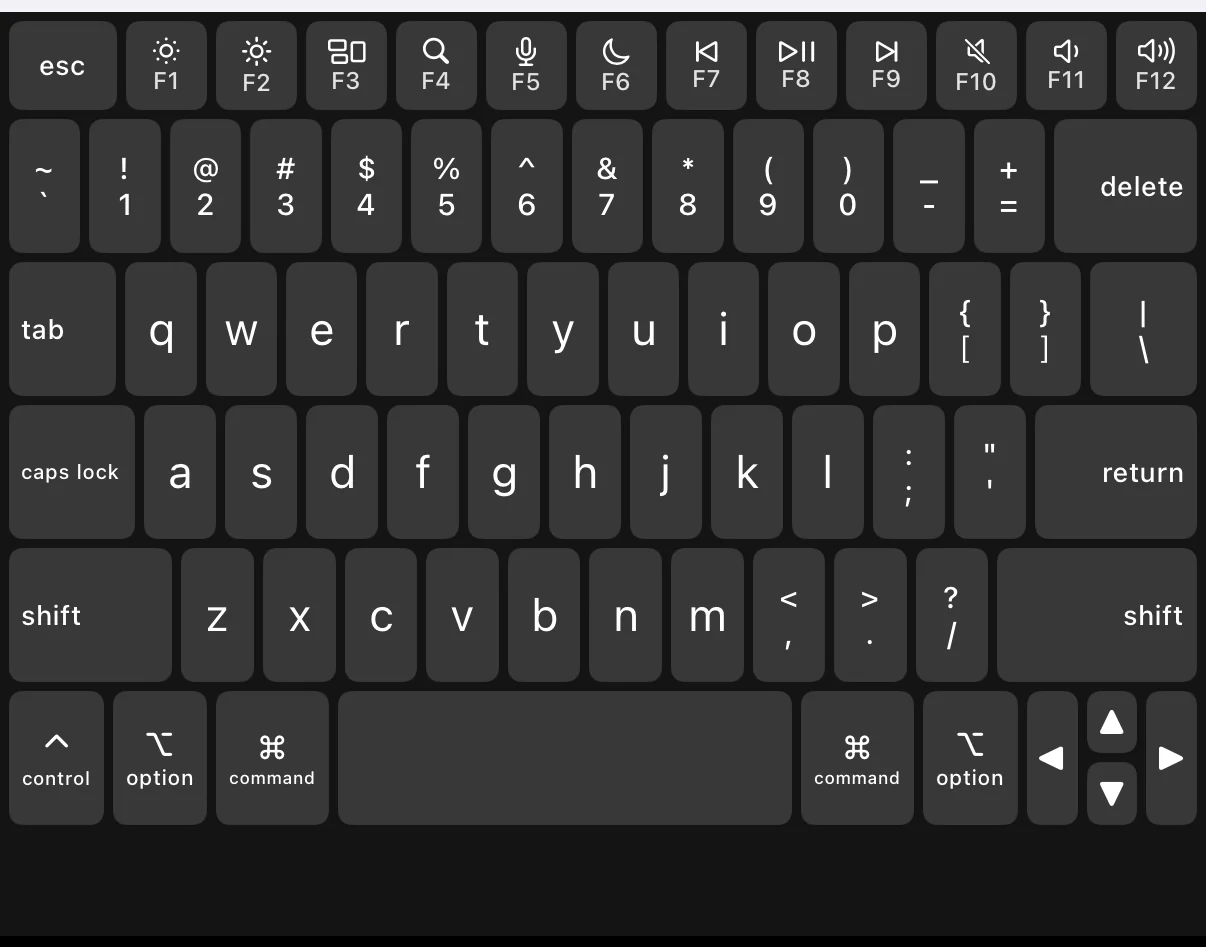 Tap ⌘ first
How you press ⌘Q
Tap ⌘ — it lights up — then tap Q. The ⌘ releases itself and the shortcut is sent. To use the same modifier several times in a row (⌘C then ⌘V), double-tap ⌘ to lock it, and tap once more to release.
The iOS keyboard can't send Esc, ⌘ or arrow keys. What do I do?
Turn on the MacBook keyboard in TouchNow's Settings. It's a full MacBook layout — Esc, F1–F12, arrow keys, ⌘⌥⌃⇧ combinations and caps lock all get through, none of which the iOS keyboard can send. Modifiers are sticky: tap one and it lights up, tap the next key and it releases, so ⌘Q and ⌘Tab work one-handed. Double-tap to lock a modifier for repeated use.
When to turn it off
Turn it off for Chinese or emoji and use your iPhone’s own keyboard — the MacBook keyboard has no input methods. You can switch between the two at any time without reconnecting.