
Building your gamepad
Most Mac games were never designed for a gamepad — they expect WASD, Space and a couple of letter keys. So instead of shipping you a fixed controller, TouchNow lets you build the one that particular game needs. Every image below is a real screenshot.
What you start with
Connect first
The editor lives inside a session, so pair your Mac and connect — the setup guide covers that once.
Switch to Game mode
Pick the controller icon in the mode switcher. The screen turns landscape and the default pad appears.
A stick and four buttons
That default is a starting point, not a limit. Anything on it can be moved, resized, rebound or deleted.
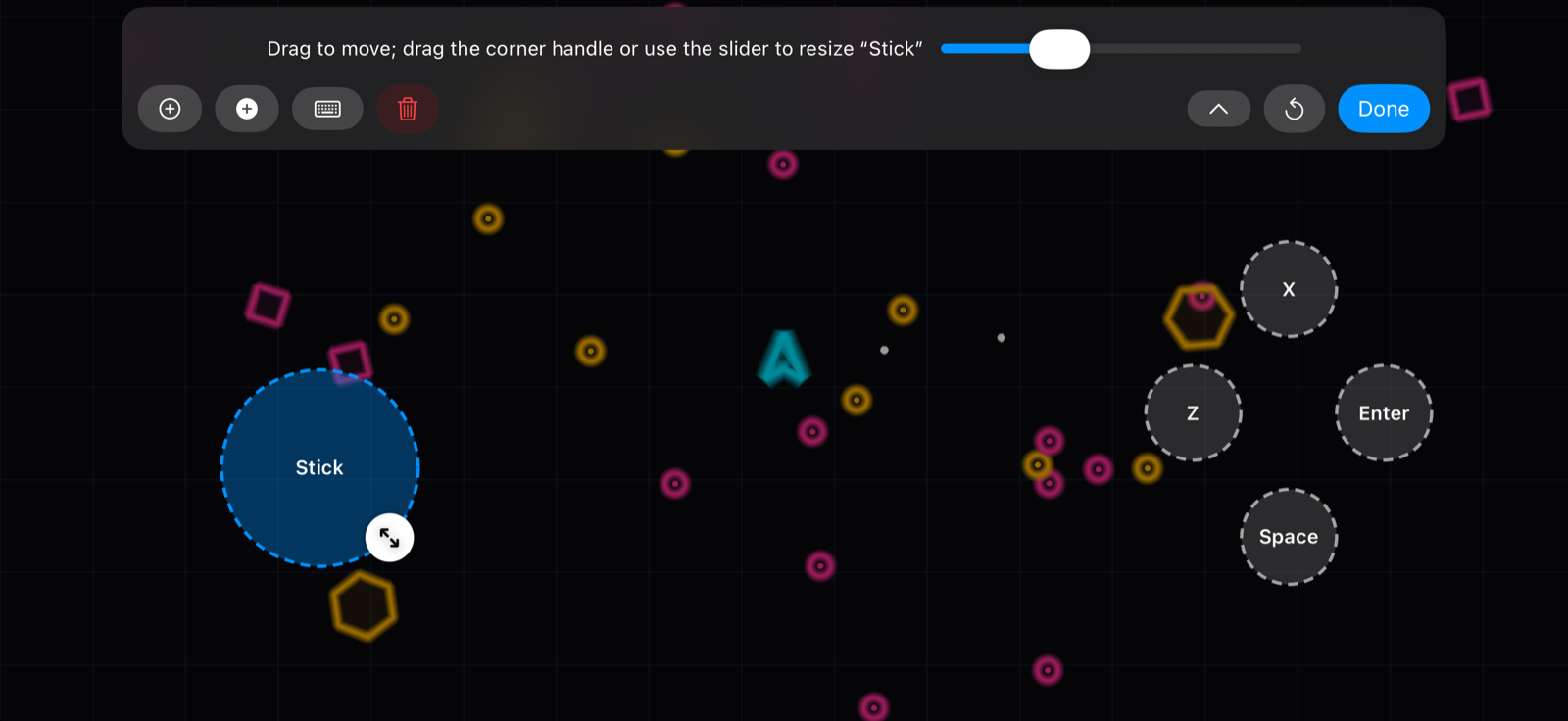 Drag to resize
Tap “⋯” → “Edit Button Layout”
That menu item only exists while you are in Game mode. Everything turns into a dashed outline, and the one you tapped last is highlighted — that is the one the panel is acting on.
Drag any button or stick to move it. Drag the round handle at its lower right, or use the slider in the panel, to resize it anywhere from half size to a little over double.
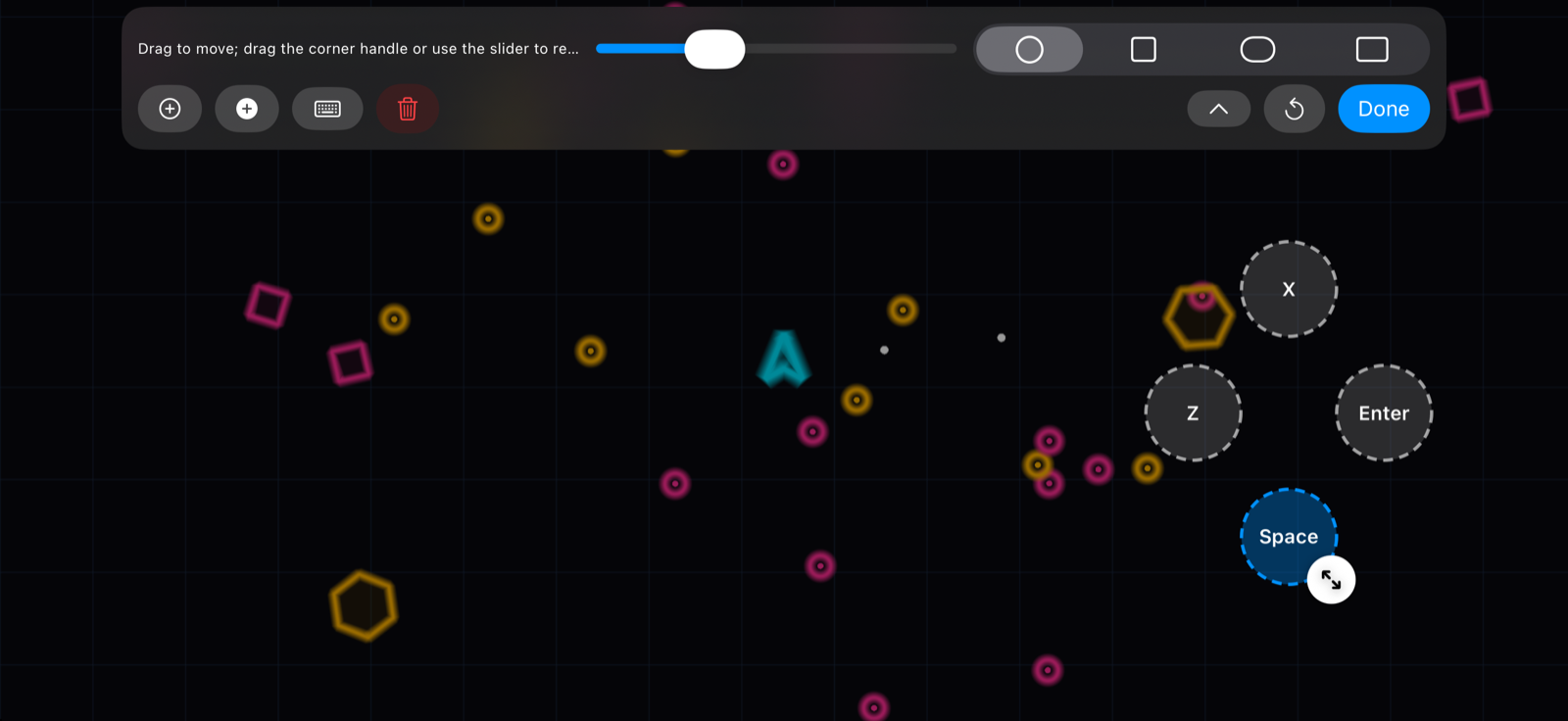 Four shapes
Circle, square, capsule or bar
Select a button and a shape picker appears in the panel. A shape is not decoration — it is how big a target your thumb gets. A wide bar is hard to miss for something you hit constantly, like jump; a small circle keeps a rarely-used key from swallowing the screen.
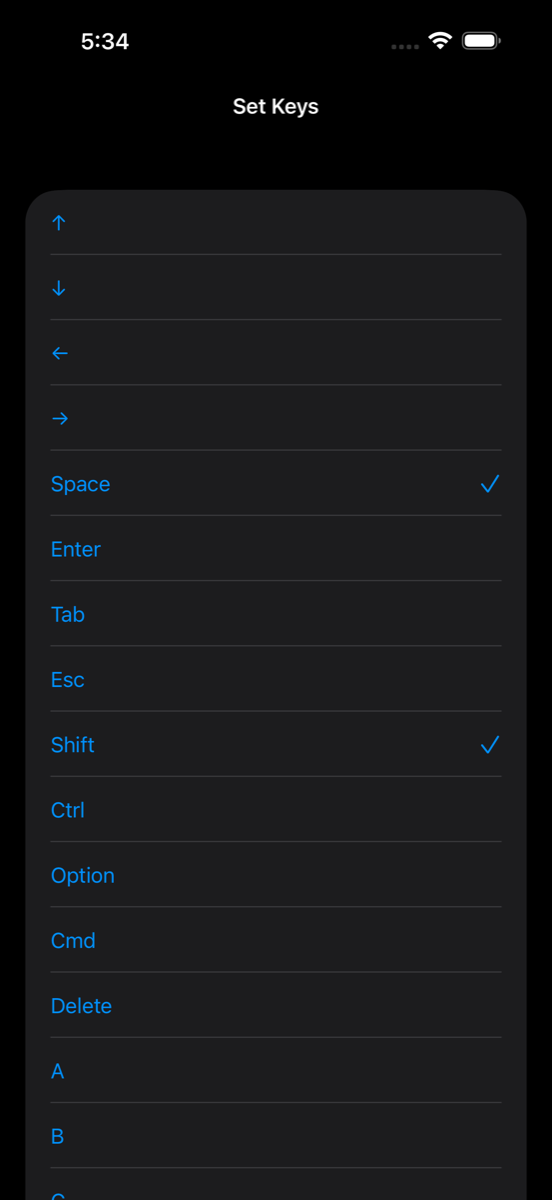 Tick more than one
One key, or several at once
Tap the keyboard button in the panel and pick what this button should press. Tick more than one and they are all held together — Shift + Space becomes a single sprint-jump you can hit with one thumb.
The full list is there: A–Z, 0–9, arrows, Space, Enter, Tab, Esc, Delete, ⌘ ⌥ ⌃ ⇧, and F1–F12.
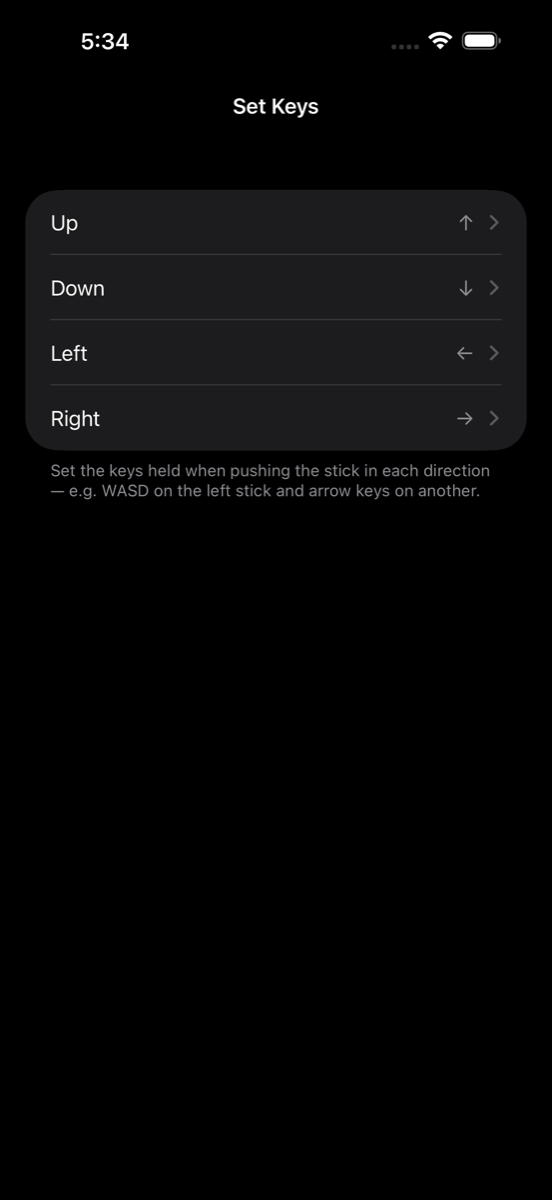 Four separate keys
The stick’s four directions are four separate bindings
Up, Down, Left and Right are set one at a time, so a stick is really just four keys arranged in a circle. A new stick starts on the arrow keys; add a second one and it starts on WASD. Both are yours to change.
A few more things worth knowing
It saves itself
The layout is written to your device the moment you change it, and it is there the next time you connect. There is nothing to name or export.